
HOT!Buy Ready-Made Authority WebsitesClick Here


Making Blogger Professional, Important Updates !!
Hello SoraBloggingTips Readers, If you are reading this, then we would like to appreciate your efforts for being supportive. We know its har...
How To Setup SoraShop Blogger Template
Discover more
Blogger
E-Commerce
blogspot.com
Blogspot
blogger
SEO
Blogger theme developer for hire
Authority Websites
Search engine optimization
Professional Blogger Setup

SoraShop Blogger Template is a flagship eCommerce blogging blogger theme for blogger platforms, this is a fully functional theme with high-quality widgets and elements, this theme is loaded with tons of options and features. SoraShop is equipped with various widgets that will help you to publish your blog more professionally. To make it easy for you, we have published this detailed documentation to set up your blog correctly. You have made a good decision by choosing our template.
You can check the live demo or download the template through the button below and also Please Read this documentation carefully to set up your blog and please note that there’s no support for free users.
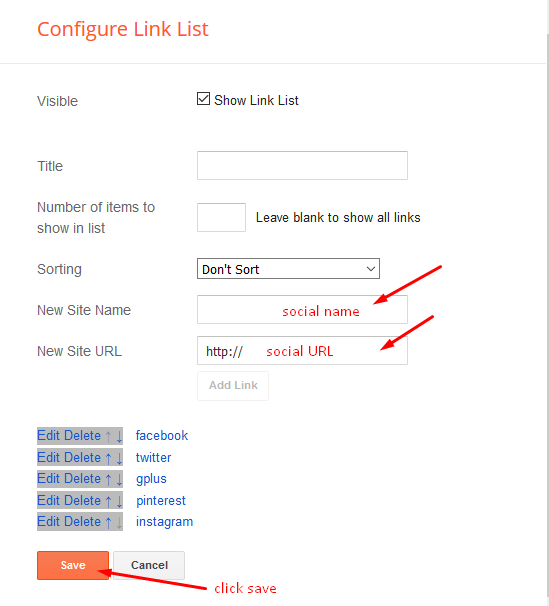
Top Social
Access your blog Layout > click Edit icon on Social Top widget.
Icons Avaliables { facebook, twitter, gplus, rss, youtube, skype, stumbleupon, tumblr, vk, stack-overflow, github, linkedin, dribbble, soundcloud, behance, digg, instagram, pinterest, twitch, delicious, codepen, reddit, whatsapp, snapchat, email }
Top Menu
Access your blog Layout > click Edit link on Top Menu widget.

How to add icons in the top navigation?
Select an icon >> FontAwesome <<, Example
<i class="fa fa-download"></i>Example: <i class="fa fa-download"></i>Download this Theme

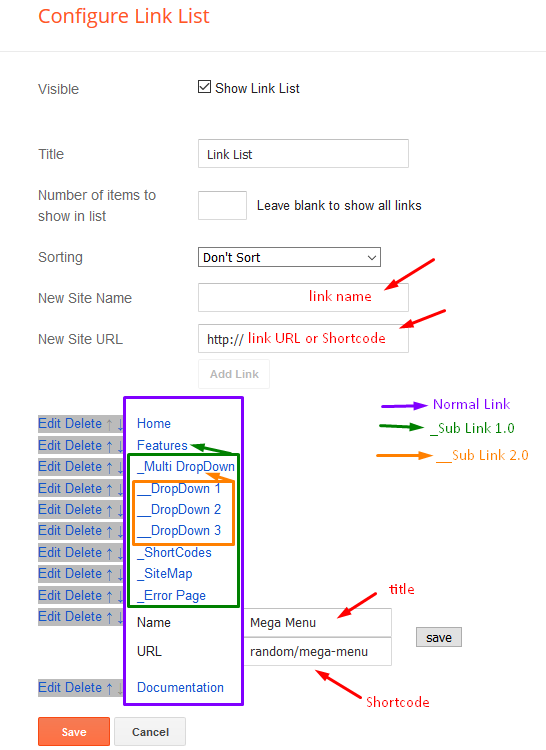
Main Menu/DropDown/Multi DropDown/Mega Menu
Access your blog Layout > click Edit icon on Main Menu widget.
Normal Link : Features
Sub Link: _Sub Link 1.0 (before the link add "_") 1 underscore
Sub Link 2: __Sub Link 1.1 (before the link add "__") 2 underscore
Mega Shortcode by Label: Technology/mega-menu
Mega Shortcode by Recent: recent/mega-menu
Mega Shortcode by Random: random/mega-menu
Mega Tab Menu
To display tabbed label specific products you need to add a shortcode into the widget, just copy the below shortcode and and paste it into the url section of the widget.

You must add the desired labels, into the shortcode, to make it work.
Note: In the mTabs type, you can add as many labels as you want, there is no defined limit! but remember they must be separated by "/".
Secondary Menu
Access your blog Layout > click Edit icon on Secondary Menu widget.
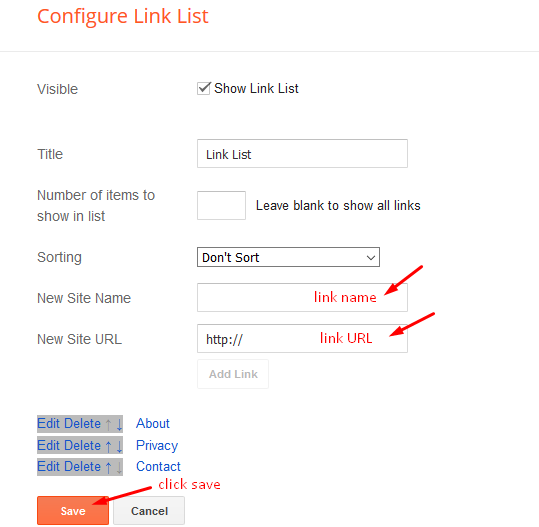
Vertical Icon Menu
Access your blog Layout > click Edit link on Top Menu widget.

How to add icons in the top navigation?
Select an icon >> FontAwesome <<, Example
<i class="fa fa-download"></i>Example: <i class="fa fa-download"></i>Download this Theme
Slider
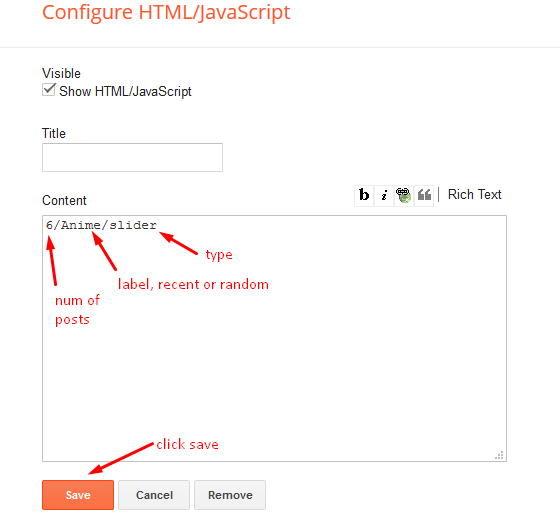
Access your blog Layout > click Add a Gadget > HTML/JavaScript on Slider section, you must place the following names highlighted in blue below.
Shortcode: number of posts/label name/shortcode
Example: 8/Technology/slider

 You must add the desired labels, into the shortcode, to make it work.
Note: In the mTabs type, you can add as many labels as you want, there is no defined limit! but remember they must be separated by "/".
Verticle Tag
This is nothing but a label widget, just keep the setting similar as below image.
Note: For ideal condition always limit the number of labels to 8.
Product Tabs
Access your blog Layout > click Edit icon on Product Tabs widget. To display tabbed label specific products you need to add a shortcode into the widget, just copy the below shortcode and and paste it into the url section of the widget.
Shortcode: [getMega label="kids/laptop/mens/mobile/smartwatch" type="mtabs"]
Note: In the mTabs type, you can add as many labels as you want, there is no defined limit! but remember they must be separated by "/".
Hot Offers
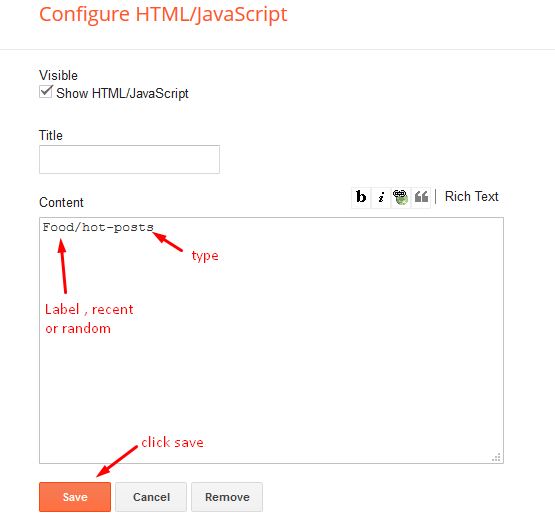
Access your blog Layout > click Add a Gadget > HTML/JavaScript on Hot Offers section, you must place the following names highlighted in blue below.
Shortcode: Label, recent or random/hot-posts
Example: Food/hot-posts
Product Services
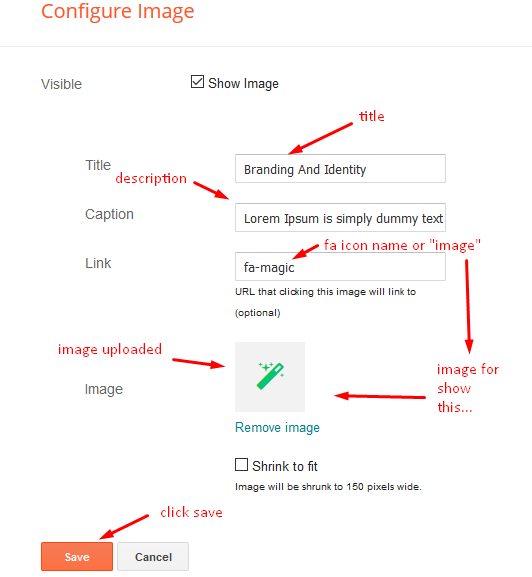
Access your blog Layout > click Edit icon > on Product Services widget's.
Widget Settings EX:
How to get FontAwesome icon name ??
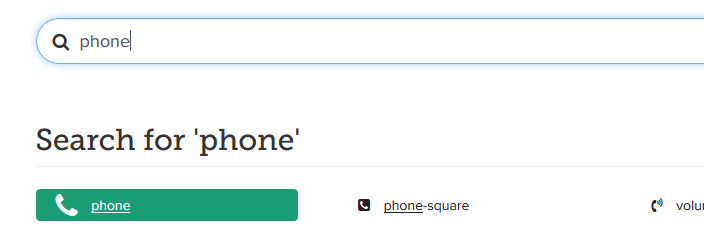
Step 1: Go to https://fontawesome.com/v4.7.0/icons/
Find icon EX:
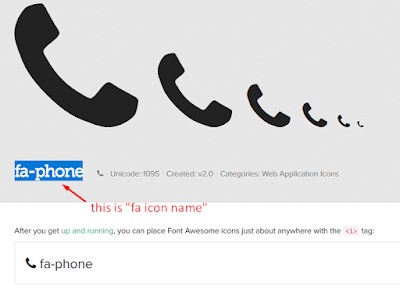
Step 2: Open icon page and copy "fa icon name".
EX:
Featured Products 1,2,3 & Product List 1-2
Access your blog Layout > click Add a Gadget > HTML/JavaScript on Featured Products 1,2,3 & Product List 1-2 section, you must place the following names highlighted in blue below.
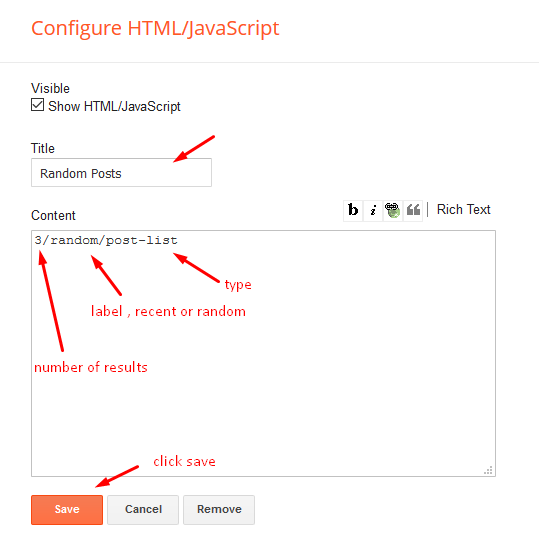
Shortcode: Results number/Label, recent or random/post-list
Label Posts: 3/Technology/post-list
Recent Posts: 3/recent/post-list
Random Posts: 3/random/post-list
Post List Widget
Access your blog Layout > click Add a Gadget > HTML/JavaScript on Sidebar or Footer section, you must place the following names highlighted in blue below.
Shortcode: Results number/Label, recent or random/post-list
Label Posts: 3/Technology/post-list
Recent Posts: 3/recent/post-list
Random Posts: 3/random/post-list
Social Widget (Sidebar)
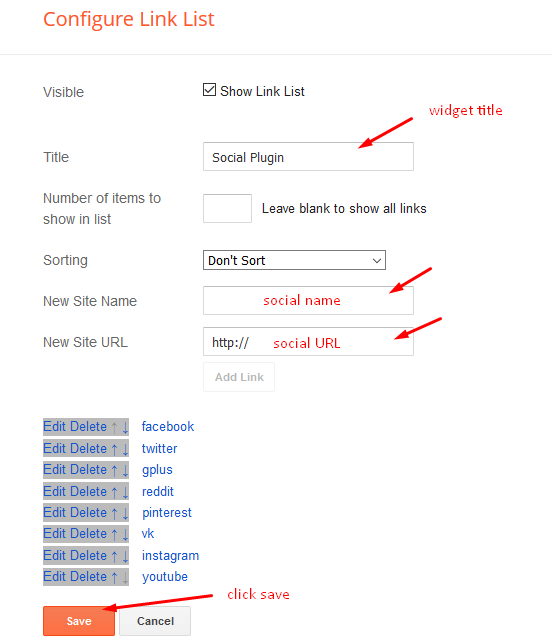
Access your blog Layout > click Edit icon on Social Widget widget.
Icons Avaliables { blogger, facebook, twitter, gplus, rss, youtube, skype, stumbleupon, tumblr, vk, stack-overflow, github, linkedin, dribbble, soundcloud, behance, digg, instagram, pinterest, twitch, delicious, codepen, reddit, whatsapp, snapchat, email }
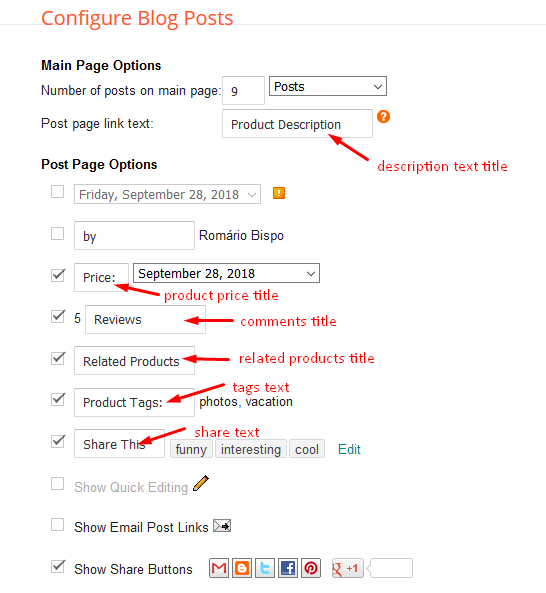
Product Page
Access your blog Layout > click Edit icon on Main Posts/Blog Posts widget.
Brand Logos
Access your blog Layout > click Edit icon on Brand Logos widget.

Post Layouts
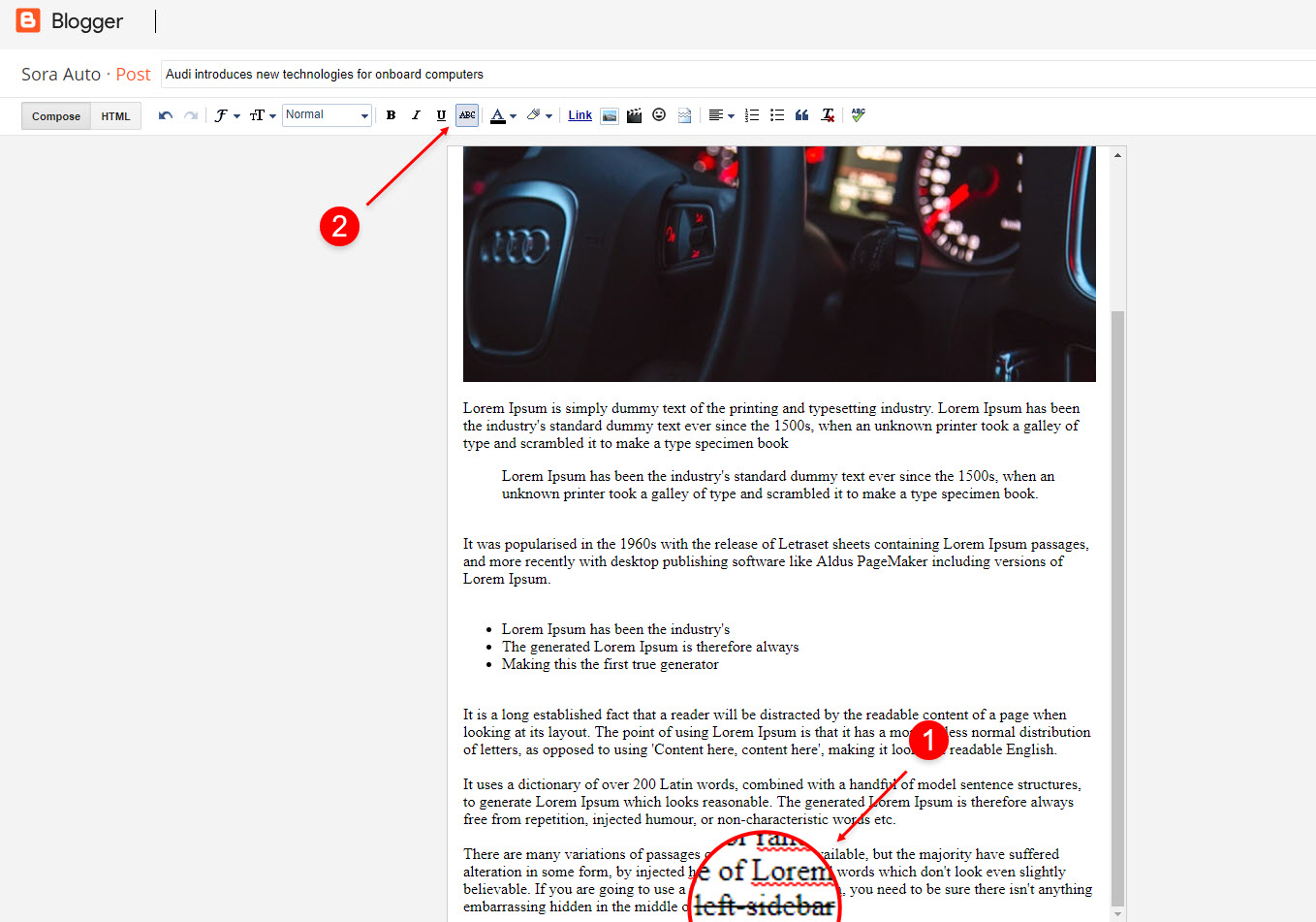
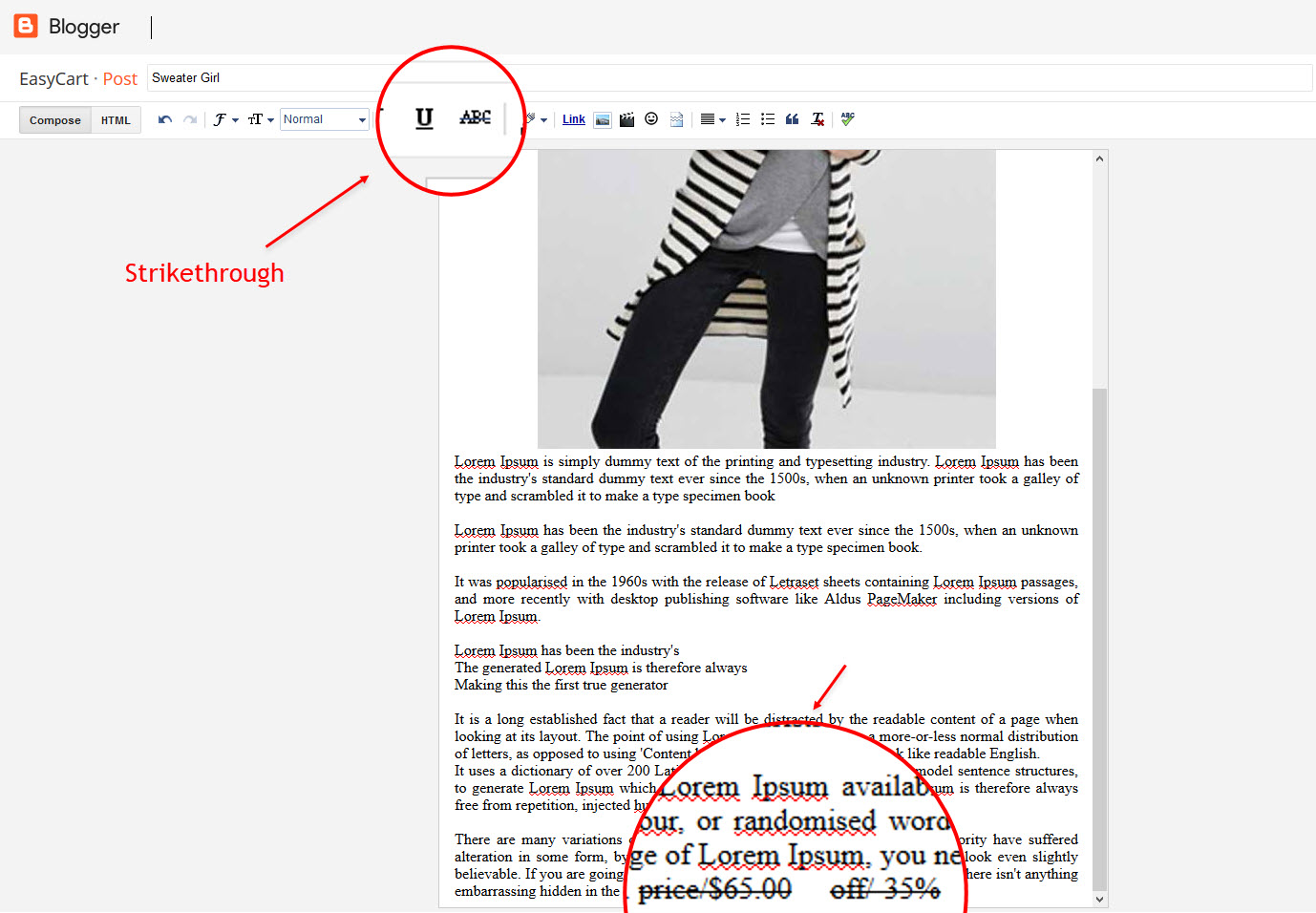
Left Sidebar: Inside the post add the text left-sidebar and add the style Strikethrough
Full Width: Inside the post add the text full-width and add the style Strikethrough
Right Sidebar: Inside the post add the text right-sidebar and add the style Strikethrough
Product Price, Discount and Size
Price Shortcode: price/"Your Product Price"
Discount Shortcode: off/"Your Product Price"
Size Shortcode: size/"Your Product Size 1"/"Your Product Size 2"/"Your Product Size 3"
Price EX: Inside the post add the text price/$59.00 and add the styleStrikethrough
Discount Shortcode: off/"Your Product Price"
Size Shortcode: size/"Your Product Size 1"/"Your Product Size 2"/"Your Product Size 3"
Price EX: Inside the post add the text price/$59.00 and add the style
Discount EX: Inside the post add the text off/-35% and add the style Strikethrough
Size EX: Inside the post add the text size/35/36/37 and add the styleStrikethrough
Size EX: Inside the post add the text size/35/36/37 and add the style
Cart Page
Access your blog Pages > click New Page > Title , in title enter "cart" (without quotes).
Note:- the cart page will not work if you don't put the title correctly, after adding the title your page link must look like this.
Note:- the cart page will not work if you don't put the title correctly, after adding the title your page link must look like this.
https://sora-cart-soratemplates.blogspot.com/p/cart.html
or
https://www.xyz.com/p/cart.html
Checkout Page
Access your blog Pages > click New Page > Title , in title enter "checkout" (without quotes).
Note:- the checkout page will not work if you don't put the title correctly, after adding the title your page link must look like this.
Note:- the checkout page will not work if you don't put the title correctly, after adding the title your page link must look like this.
https://sora-cart-soratemplates.blogspot.com/p/checkout.html
or
https://www.xyz.com/p/checkout.html
Credit Cards Icons
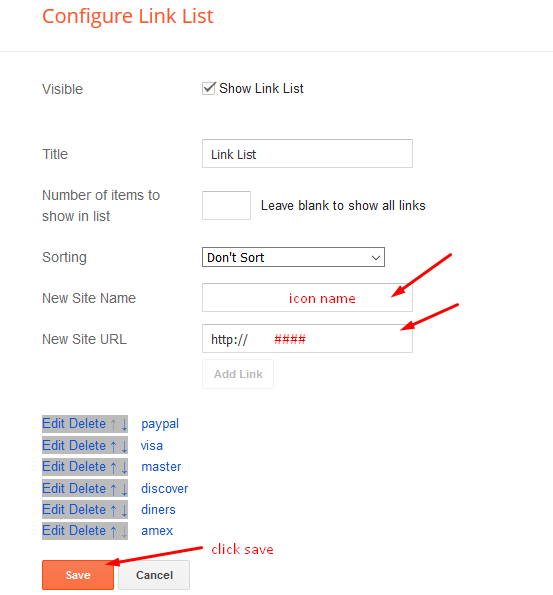
Access your blog Layout > click Edit icon on Credit Cards widget on Footer.
Icons Avaliables { paypal, visa, master, amex, diners, discover, jcb }
Theme Options
01 - Payment Options
Access your blog Layout > click Edit icon on Payment Options widget.
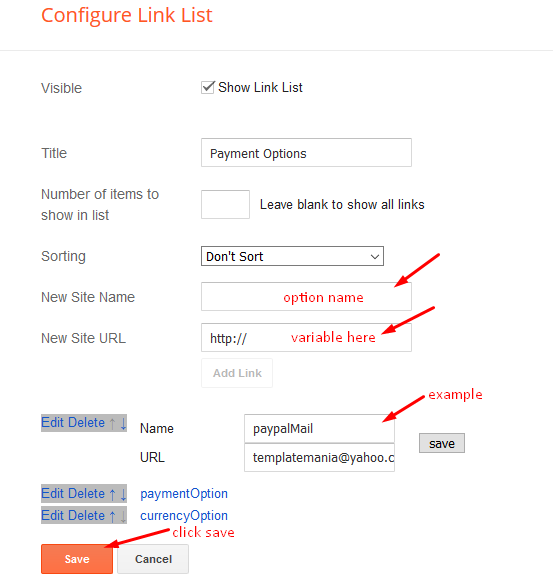
Payment Option: In New Site Name add paymentOption, in New Site URL add your option, after click on save button. default is "PayPal".
PayPal Email: In New Site Name add paypalMail, in New Site URL add your paypal e-mail, after click on save button.
Currency Option: In New Site Name add currencyOption, in New Site URL add your currency, after click on save button. default is "USD".
Available Curencies:
"USD" - Currency Name ("US Dollar")
"AUD" - Currency Name ("Australian Dollar")
"BRL" - Currency Name ("Brazilian Real")
"CAD" - Currency Name ("Canadian Dollar")
"CZK" - Currency Name ("Czech Koruna")
"DKK" - Currency Name ("Danish Krone")
"EUR" - Currency Name ("Euro")
"HKD" - Currency Name ("Hong Kong Dollar")
"HUF" - Currency Name ("Hungarian Forint")
"ILS" - Currency Name ("Israeli New Sheqel")
"JPY" - Currency Name ("Japanese Yen")
"MXN" - Currency Name ("Mexican Peso")
"NOK" - Currency Name ("Norwegian Krone")
"NZD" - Currency Name ("New Zealand Dollar")
"PLN" - Currency Name ("Polish Zloty")
"GBP" - Currency Name ("Pound Sterling")
"SGD" - Currency Name ("Singapore Dollar")
"SEK" - Currency Name ("Swedish Krona")
"CHF" - Currency Name ("Swiss Franc")
"THB" - Currency Name ("Thai Baht")
"BTC" - Currency Name ("Bitcoin")
"INR" - Currency Name ("Indian Rupee")
A) - Upi Options
Access your blog Layout > click Edit icon on Upi Options widget.

B) - Bank Details
Access your blog Layout > click Edit icon on Bank Details widget.
In New Site Name add Your Bank Details, in New Site URL add Your Bank Detail Values, after click on save button.

In New Site Name add Your Bank Details, in New Site URL add Your Bank Detail Values, after click on save button.
02 - Boxed Version
Access your blog Layout > click Edit icon on Boxed Version widget.
In New Site Name add boxedVersion, in New Site URL add true or false, after click on save button.

03 - Default Variables
Access your blog Layout > click Edit icon on Default Variables widget.
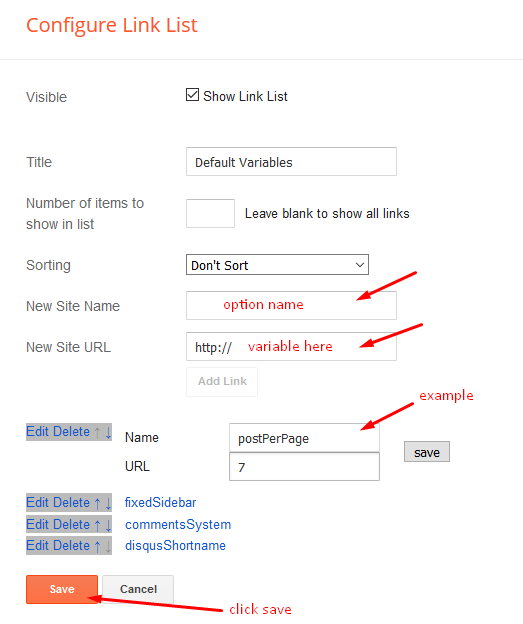
Post Per Page: In New Site Name add postPerPage, in New Site URL add the number of results, it should be the same as the posts from the home page, after click on save button.
Fixed Sidebar: In New Site Name add fixedSidebar, in New Site URL add true or false, after click on save button.
Comments System: In New Site Name add commentsSystem, in New Site URL add the comments sytem type {blogger, disqus, facebook or hide}, after click on save button.
Disqus Shortname: In New Site Name add disqusShortname, in New Site URL add your disqus comment system shortname, after click on save button.
Facebook Page Plugin
Access your blog Layout > click Add a Gadget > HTML/JavaScript on Sidebar or Footer section, and paste the code below.
<center><div class="fb-page" data-href="https://www.facebook.com/templatesyard" data-width="360" data-small-header="false" data-adapt-container-width="true" data-hide-cover="false" data-show-facepile="true"></div></center>
Note: In Attribute data-href replace the link per your facebook page url.
Customizing Your Template
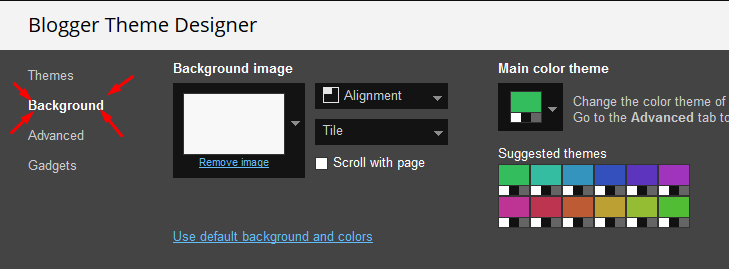
Access your blog Theme > click Customize button.
Here you can change the background, and apply pre-defined colors
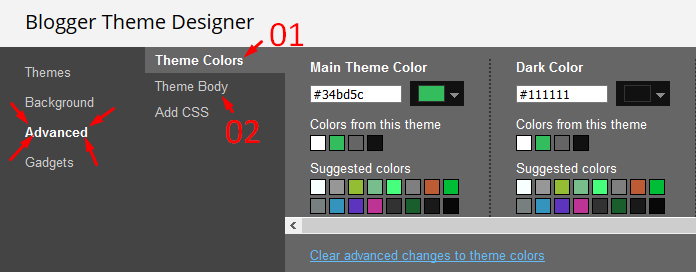
Clicking Advanced You will see the official option to change the Main Colors
Installation And Custom Services
We provide plenty of templates for free but if you want something unique for your blog then let us create a unique design for your blog, Just tell us your needs and we will convert your dream design into reality. We also Provide Blogger Template Installation Service. Our Installation service gives you a simple, quick and secure way of getting your template setup without hassle.
Note : -We have stopped giving support to free version users, please read this article Making Blogger Professional, Important Updates !!. If You Are Facing Any Problem While Setting Up The Free Theme, Then We Recommend You To Read Our FAQ(Frequently Asked Question) Page.
Note : -We have stopped giving support to free version users, please read this article Making Blogger Professional, Important Updates !!. If You Are Facing Any Problem While Setting Up The Free Theme, Then We Recommend You To Read Our FAQ(Frequently Asked Question) Page.
Discover more
E-Commerce
Blogger
Blogspot
blogspot.com
blogger
Seo
Professional Blogger Setup
Authority Websites
Magazine
SEO
Popular Posts


Categories
Followers
Copyright © 2025 Sora Blogging Tips | Owned by WebGlint.
best template love it
GOOD WARK
Dear sir your template is realy good..
i face a problem in checkout option how to convert $-₹
i am indian so i use it in INR.
please reply
You need to change the currency code in both places, that means on payment option and shortcodes.
i am traying change payment option not woring please reply
humbly request
Access your blog Layout > click Edit icon on Payment Options widget.
Saya sangat sukali dengan template ini, sehingga untuk sementara kami mencoba memasang pada blog kami di seowp.cc kami berharap ada perubahan dan kemudahan dalam menata tiap-tiap iklan promosi
Please speak english.
12 Month Premium Support after 12 Month i have to pay gain or not
After 12 month you have to pay again for this service.
nice work . but there is problem with slideshow in arabic Blog language
slider not work with arabic demo https://alimohamed225.blogspot.com/
I ma using this template for education purpose. When I go to home page there is an option of latest product. How I can remove or rename it. Please reply here is the link,
https://www.grammarquiz.org/
This comment has been removed by the author.
Excuseme, I want to add payoneer and skrill as my payment method, paypal is not available here. How to do that?
You can do with editing html and making another checked system in it with JavaScript/jQuery etc.
I cant setup my currency. My Currency Is BDT (Bangladeshi Taka)
This currency is not supported.
HOW TO CHANGE checkout option how to convert $-₹
i am indian so i use it in INR.
You need to change the currency code in both places, that means on payment option and shortcodes.
Pls rply how to add shortcodes "INR" PLS
We have already described the method.
To "IDR" please
hello hope you are doing well. sir i am using your template for affiliate marketing.i want to change add to cart buttons to buy now and insert my link in it. can i get that?
Sorry we can't provide support on additional customization(Adding or Removing stuffs) rather than solving issues or bugs, if you want to customize your template then buy our blog customization service.
You Have To remove all button by editing html code
And you have to add buy button under posts
(When you write posts)
Is it possible to remove cart and check out? I don't need any selling option, but just display only.
can u help me about one thing i want to remove all from box from Contact Form just need 2 box full name and email i want to remove all other how to do it ? thanks
Sorry we can't provide support on additional customization(Adding or Removing stuffs) rather than solving issues or bugs, if you want to customize your template then buy our blog customization service.
Slider not showing anything please help
Hello, the MAD currency of Morocco is supported on SoraShop ??
This currency is not supported.
Hello, how are you? I have a problem creating the cart page, do as the documentation says, create a new page and put the title cart, but when I save the page, the URL is different. example: "www.123.com/p/cart_74.html"
Some digits appear after the word cart, it does not appear the right page. can this fix?
it seems you have already created the page and deleted it, now you have to replace the url path from the jquery, it requires premium version.
can u add myr currency? if u can, then i would like to buy the template.
Is it possible to show 2 posts or products in mobile view..?
No
Can I remove Add to cart, view cart, checkout options from the theme
Yes
please tell me how to remove view cart, checkout,add to cart options from the theme
Sorry we can't provide support on additional customization(Adding or Removing stuffs) rather than solving issues or bugs, if you want to customize your template then buy our blog customization service.
Look team sorashop your template has lots of bugs i am listing some of them
No effect takes place when one person changes Currency option it always shows dollars as currency in cart and further.
We cannot add or remove payment options cash on delivery and paypal.
Plz fix these bugs and update the file for downloading.
How to add INR as default please help
You need to change the currency code in both places, that means on payment option and shortcodes.
How can I choose a size and the price change follow!
Inside the post add the text price/$59.00 and add the style Strikethrough
Inside the post add the text off/-35% and add the style Strikethrough
Inside the post add the text size/35/36/37 and add the style Strikethrough
As my question that I would like to change my other price when I select new size (that mean other size will have other price)
As your example: price/$59/$60/$61 and size/35/36/37
If size = 35 then price $59. If size = 36 then price $60 and If size = 37 then price $61.
How can I do that?
It isn't possible right now.
Hello, how can I see the orders you have made? When the payment is confirmed and takes it to the bank transfer screen, how do you know there is an order?
You will get email if you are the admin of the same blog.
hi, i can't input my page link in my site by ur sorashop template theme. pls help . my site link: https://secretjinish.blogspot.com/
https://www.facebook.com/secretjinish
Please follow the documentation well.
why not getting from emaill when some1 send from Contact from
You have to install blogger's official contact form first.
its already added by u https://prnt.sc/yllouq
but still not delivering email
official contact still not getting mail
even when some1 order and the info in order address not getting in maill at all pllz help to fix
Only admin get mail if someone order.
im admin of the blogger and but anyone send anything using order from im not getting any mail at all i uploaded the template to other demo site when i try there i get mail but when i using my main site and try in main site im not getting maill at all whats can be problem sir
Please check your spam message because in demo there is no problem.
Great project, I bought the version. I have a problem, how do I charge 1 time for shipping for multiple items in my cart? Thank you
This is not possible.
I am using the premium version, the cart has failed to order two items, it doesn't seem to understand the price and quantity! What is a way to convert $ to VND! because i'm in vietnam
In demo there is no problem to order two item.
Vietnam currency is not supported.
How can i use indian rupees in curruncy
You need to change the currency code in both places, that means on payment option and shortcodes.
email does not send from template . what do i do in "edit htlm" ?
You have to install blogger's official contact form first.
Thanks for the great work!
How can I change the 'Search this Blog' string to 'Search Products' string in the search bar?
Sorry we can't provide support on additional customization(Adding or Removing stuffs) rather than solving issues or bugs, if you want to customize your template then buy our blog customization service.
Please How can I make a product unavailable when the quantity in the store is sold?
This feature isn't available right now, once we will update the theme you will get the update.
How to change the Placeholder string "Search this Blog" to "Search Product" string?
I already sent your an email and a post here 2 days ago. I've bought the extended version.
Thanks.
I've found the solution here:
https://support.google.com/blogger/thread/11842882?hl=en
Hi Martin,
data:messages.search is a variable, so it should be translated automatically. If your language is not supported on Blogger (go to your dashboard -> settings -> language and formatting -> language - and check), you can replace..
this:
expr:placeholder='data:messages.search'
with:
placeholder='yourSearchWord'
and this:
expr:value='data:messages.ok.escaped'
with:
value='yourOKword'
Original Poster Martin Mitev marked this as an answer
Last edited 8/13/19
still not working, even the label has matched in the widget layout settings
Please share your blog url.
I bought the template from here:
https://www.soratemplates.com/2020/08/sorashop-blogger-templates.html
The Footer has a bug on the cart ant checkout pages.
Share the fixed code.
What bug are you talking about.
I bought Extended Version, and I cannot have list of "Latest Products". Can you help me?
Please share your blog url.
Hallo Saya dari Indonesia,
Saya meminta izin untuk memakai yang Gratis,
terimakasih Sora Bloging Tips
Please speak english.
Hello admin, I want to buy premium version, but I already check in free version INR Currency not support and I want to a small change in this templats like search this blog to search product.